The Odoo Website Builder is a powerful drag-and-drop editor that lets you customize every aspect of your website without coding. Learn how to use it effectively.
Accessing the Website Builder
To edit your website:
- Navigate to any page on your website
- Click the Edit button in the top-right corner
- The Website Builder sidebar will appear on the right
Visual Reference: When you click Edit on any page, the Website Builder sidebar appears on the right side of the screen with tabs for Blocks, Style, and Theme options.
The Builder Interface
The Website Builder has three main tabs in the right sidebar:
1. Blocks Tab
The Blocks tab contains pre-designed sections you can add to your page:
Section Blocks:
- Intro - Hero sections with headlines and call-to-action
- Columns - Multi-column layouts
- Content - Text and image combinations
- Images - Image galleries and showcases
- People - Team member profiles
- Text - Text-focused sections
- Contact & Forms - Contact forms and maps
- Social - Social media integrations
- Catalog - Product showcases
- Blogs - Blog post displays
- Events - Event listings
Inner Content Elements:
- Text - Add text blocks anywhere
- Button - Call-to-action buttons
- Image - Single images
How to Add: Simply drag a block from the sidebar and drop it onto your page where you want it to appear.
2. Style Tab
The Style tab lets you customize the appearance of selected elements:
- Background colors and images
- Text colors and fonts
- Spacing and padding
- Borders and shadows
- Animation effects
3. Theme Tab
The Theme tab controls global website settings:
- Color palette selection
- Font families
- Button styles
- Header and footer layouts
Editing Content
Editing Text
- Click on any text element on the page
- A text editing toolbar will appear
- Type to replace or edit the text
- Use the toolbar for formatting (bold, italic, links, etc.)
Editing Images
- Click on any image element
- Click the image icon or "Replace" option
- Choose from the media library or upload a new image
- Adjust size and positioning as needed
Editing Buttons
- Click on a button element
- Edit the button text directly
- Use the options panel to change:
- Link destination (URL or page)
- Button style (primary, secondary, outline)
- Button size
Shop Page
If you enabled eCommerce, you'll have a Shop page to showcase and sell products:
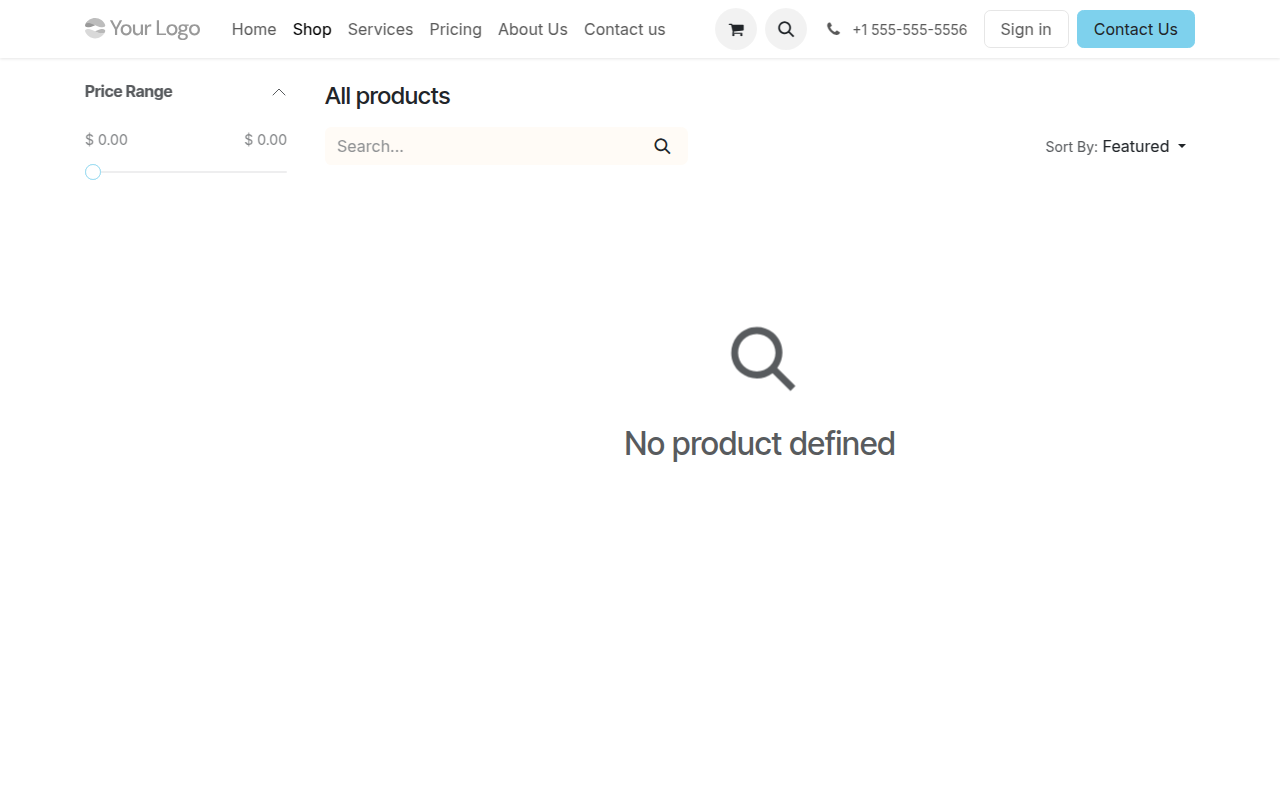
The Shop page displays your products for customers to browse and purchase
Managing Blocks
Moving Blocks
- Hover over a block to see the move handle
- Drag the handle to reposition the block
- Drop it in the new location
Duplicating Blocks
- Select a block by clicking on it
- Click the duplicate icon in the block toolbar
- A copy will appear below the original
Deleting Blocks
- Select the block you want to remove
- Click the trash/delete icon
- Confirm the deletion if prompted
Saving Your Changes
After making changes:
- Click the Save button (green) in the top-right corner
- Your changes will be published immediately
- To discard changes, click Discard instead
Important: Changes are not saved automatically. Always click Save before navigating away or your changes will be lost.
Publishing Options
Control page visibility with the Publish toggle:
- Published (toggle ON) - Page is visible to all visitors
- Unpublished (toggle OFF) - Page is only visible to editors
Use unpublished mode to work on pages before making them public.
Tips for Great Websites
Do:
- Keep your design consistent
- Use high-quality images
- Write clear, concise text
- Include calls-to-action
- Test on mobile devices
Avoid:
- Too many different fonts
- Cluttered layouts
- Low-resolution images
- Walls of text
- Missing contact info
Need Help? Contact our support team if you need assistance with your website design.